Verified account
Snapchat Profile Picture Downloader
Enter a public Snapchat username or Profile link, check the available avatar and select Avatar to save the profile picture.
Snapchat public media downloader
0 selected
No public content found
This profile does not currently have public media in this section.
Download
Open the collection to view and select every item.
Download the public profile picture, not a different image
The Snapchat Profile picture downloader finds the avatar available on a public Profile. PFP, profile pic and avatar mean the main picture beside the Profile name; DP and profile photo are other common names for it. The Avatar action saves that image, not a photo from the person's Story.
Check the display name, username and small avatar in the Profile summary before saving. The summary does not show the avatar's file format or pixel dimensions, and clicking the picture does not open a larger preview. You can inspect the saved image in your device's image viewer after downloading it.
An avatar may be a photo or Bitmoji artwork. The download saves whichever public picture is available for that Profile; it does not create a new Bitmoji or separate the artwork into parts. If the result shows letters instead of a picture and no Avatar action, there is no avatar file to save from that result.
How to download a Snapchat Profile picture
Use the exact public username or Profile link to reduce ambiguity between similar display names. A display name alone may belong to many people, while the username identifies the intended public Profile.
The browser saves the selected image. On iPhone or Android, check Downloads or the Files app first; moving the file into Photos or Gallery can be a separate device action. On a computer, the file normally appears in the browser's chosen Downloads folder.
Enter the exact username or paste the full public Profile URL, then select Find media.
Enter a username or Profile link 
Confirm the display name and username, then find the avatar beside the Profile name.
Confirm the public Profile 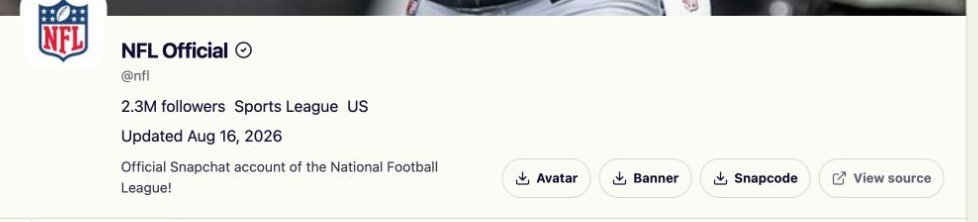
Select Avatar to save the profile picture through your browser. If Avatar is missing, no downloadable avatar was found.
Select Avatar to save the profile picture
Find the right avatar from the information you have
Use the username and the visible picture together to avoid saving the wrong person's avatar.
You know the username
Enter the exact username, then compare the Profile name and avatar with the person you meant.
You have a Profile link
Paste the complete public Profile URL instead of guessing a username from the display name.
The avatar is missing
Check the username again. A banner, Snapcode or letter placeholder is not a replacement profile picture.
You only need to look
Check the small avatar in the Profile summary. Saving it is optional and uses the separate Avatar action.
Snapchat Profile picture downloader FAQ
- Which Snapchat links can I use?
- Enter a public username, Profile URL, supported share link, Highlight link or Spotlight link. Some publisher Story links containing /p/ are also supported. Results may include public videos, photos and profile pictures, depending on what Snapchat currently makes available.
- Do I need to sign in to Snapchat?
- No. The tool works with public data and does not ask for Snapchat account credentials. It cannot use this access to open private content.
- Can it recover private, deleted or expired media?
- No. If an item is not publicly available, the tool cannot recover it. Private, removed and expired media remains unavailable.
- Does the tool change quality or remove watermarks?
- The tool does not add or remove watermarks, sharpen photos or increase video resolution. Existing marks remain. Most files download directly; some supported videos are first prepared as an MP4 in your browser. Preparing an MP4 does not create a higher-quality version.
- How do multiple downloads work?
- Selected items are saved as separate files, not a ZIP. Your browser may ask you to allow multiple downloads. Videos that need preparation use temporary browser memory before saving; the site does not keep a hosted media archive. Check your browser's download list for saved files.
- May I reuse the downloaded media?
- Only when you have permission and a lawful reason to do so. Public availability does not transfer ownership or reuse rights.
- Can I download a Bitmoji that is not available as an avatar?
- No. It can save Bitmoji artwork only when that artwork is part of the available public avatar. It does not generate a Bitmoji, extract individual parts or substitute the Profile banner for a missing avatar.
- Why is there no avatar download button?
- The Profile may not provide an avatar image for that lookup. A missing public image cannot be reconstructed.
- Can I get an HD Snapchat PFP or profile photo?
- You receive the available avatar, with no HD guarantee or enlargement. The Profile summary does not display its pixel dimensions. To check its actual size, download the avatar and inspect the image details on your device. A bigger display on screen would not create extra detail in the file.
- Does the Profile picture downloader show old avatars?
- No. It is not a PFP history viewer and cannot recover a previous avatar. It shows the current public Profile images available at the time of the lookup.
- What is the difference between the PFP downloader and Profile downloader?
- Use the PFP downloader when you want just the avatar. Profile Downloader covers other available Profile images, including the banner and Snapcode, as well as public Story, Highlight and Spotlight media. Its broader results are not a complete account backup.
Choose Avatar, then check the saved picture
A banner is the wider image across the Profile, while a Snapcode is a scannable code. Their download actions may appear alongside Avatar because the same tool can find several types of public content. Choose Avatar for the PFP. Banner and Snapcode save different images; neither reveals a larger or older version of the profile picture.
After the browser finishes saving, open the file and check that it matches the avatar beside the Profile name. Your device's image viewer may display it at a different size; zooming in changes how large it looks, not how much detail the file contains. If the picture differs from an older screenshot you have, the Profile may have been updated. The download gives you the picture available now, not a choice of earlier versions.